
If you've spent any time in PC communities, you've heard the word "bottleneck" thrown around usually as a warning. "That CPU will bottleneck that GPU!" It sounds scary, and it's one of the most misunderstood ideas in PC building. Let's clear it up in plain English.
Quick answer: A bottleneck is simply the component that limits your performance at a given moment. Every PC has one that's normal, not a defect. What matters isn't whether you "have a bottleneck," but whether the imbalance is big enough to actually cost you frames. Ignore the percentage calculators; check your real CPU and GPU usage instead.
What a Bottleneck Actually Is
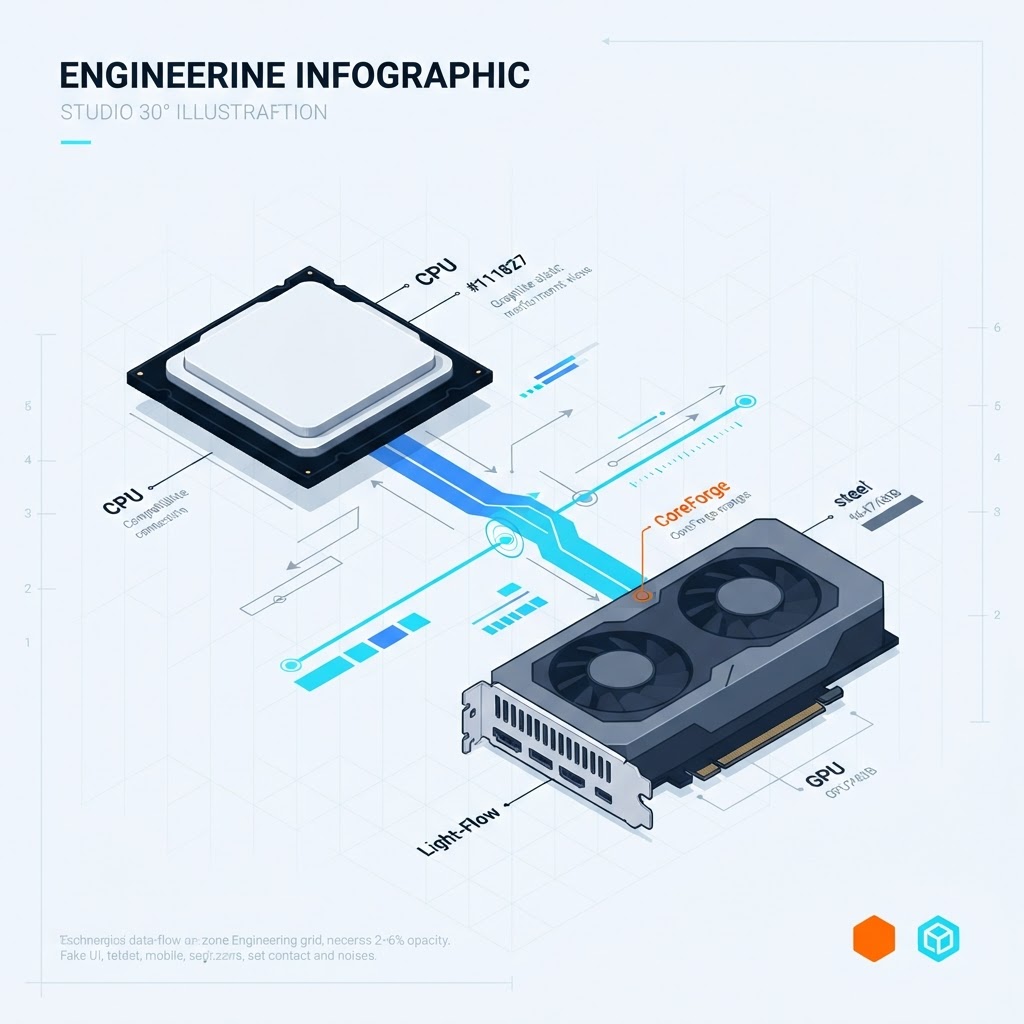
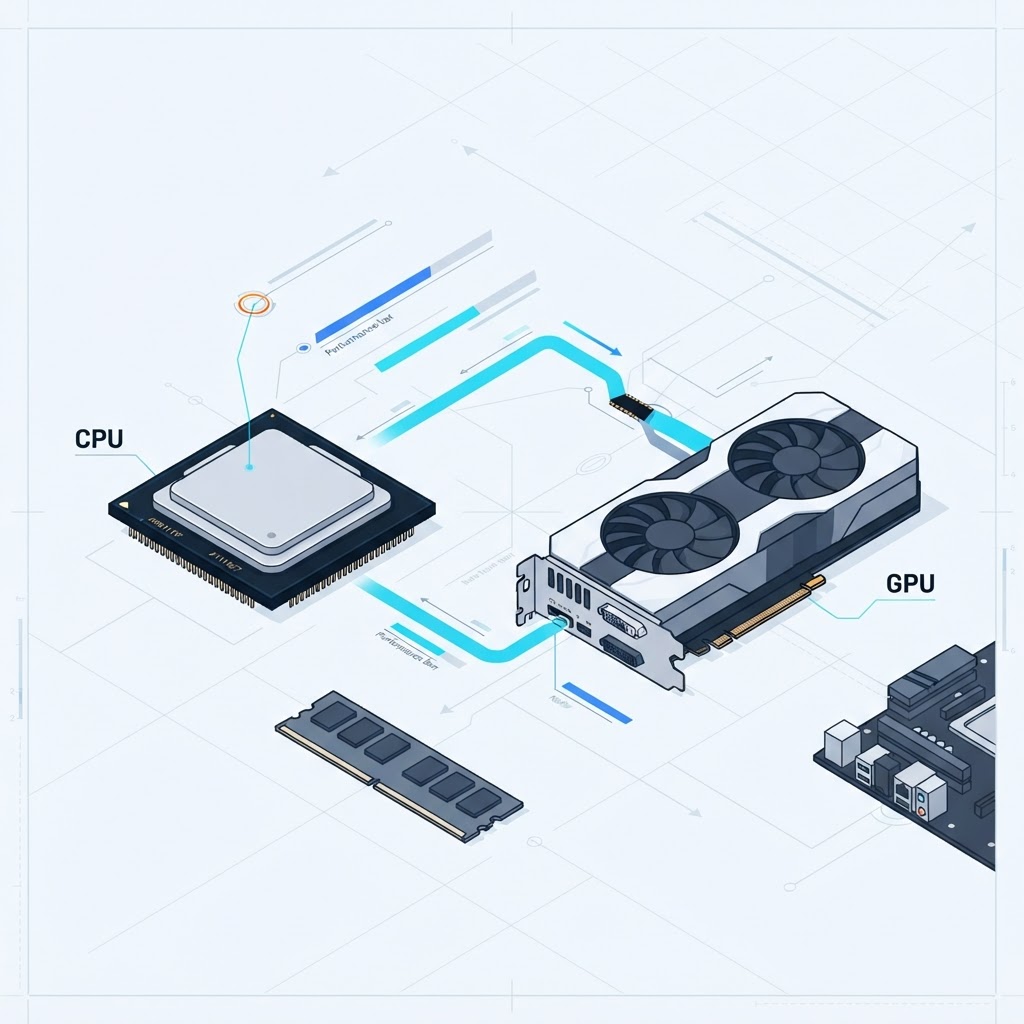
Think of your PC like a highway. Traffic flows only as fast as the narrowest point. In a PC, the CPU and GPU work together to produce frames: the CPU prepares the work (game logic, physics, draw calls) and the GPU renders the image. Whichever one is working hardest at a given moment is the "bottleneck" it's setting the pace.
Here's the key insight most beginners miss: every balanced PC has a bottleneck, and that's completely normal. There is always a limiting component. The goal isn't to eliminate it that's impossible it's to make sure the limit lands in a sensible place for how you play.
New to how these parts work together? Start with our guide to what every PC part does.
CPU Bottleneck vs GPU Bottleneck
There are two everyday cases:
- GPU bottleneck (the healthy one for gaming): your graphics card runs at 95–100% while the CPU has headroom to spare. This means you're getting maximum visual work out of your GPU. For gaming, this is exactly what you want.
- CPU bottleneck: your CPU is maxed out while the GPU sits well below 100%, waiting for instructions. Your expensive graphics card isn't being fully used. This is the case worth fixing.
| What you see | Meaning |
|---|---|
| GPU at 95–100%, CPU lower | GPU-limited healthy for gaming |
| CPU near 100%, GPU under ~70% | CPU-limited worth investigating |
| Both moderate, low FPS | Could be a settings, RAM, or thermal issue |
Why Resolution Changes Everything
This is the part the scary warnings ignore: your bottleneck shifts with your resolution.
- At 1080p, modern GPUs render frames very fast, so the burden shifts to the CPU. This is where CPU bottlenecks show up most.
- At 4K, the GPU has four times as many pixels to draw, so it becomes the limiting component and the CPU relaxes. A "CPU bottleneck" at 1080p can disappear entirely at 4K.
So the same two parts can be "CPU-limited" or "GPU-limited" depending only on your monitor and settings. That's why a one-size-fits-all verdict is meaningless.
The Truth About Bottleneck Calculators
Those websites that ask for your CPU and GPU and spit out a "34% bottleneck" number? Treat them with heavy skepticism. In 2026, upscaling (DLSS/FSR), frame generation, ray tracing, RAM speed, your target FPS, and the specific game each shift the real answer by huge margins. A calculator that ignores them produces a number that looks precise but means almost nothing. Enabling DLSS Quality alone can boost effective GPU horsepower by 30–60%, flipping the result entirely.
How to Find Your REAL Bottleneck (2 Minutes)
Forget the calculators. Here's how to see the truth on your own machine:
- Open Task Manager (Ctrl+Shift+Esc) → Performance tab. Or install a free overlay like MSI Afterburner for in-game numbers.
- Launch a demanding game and play a busy scene for a few minutes.
- Watch GPU usage and CPU usage:
- GPU at 95–100%? You're GPU-limited healthy. To gain FPS, you'd upgrade the GPU (or lower settings).
- CPU near 100% while GPU is well below? You're CPU-limited a CPU upgrade (or lighter settings) would help.
That's it. Real, honest data from your actual games beats any percentage estimate.
When Should You Actually Care?
Here's the honest bottom line: a small imbalance is normal and you'll never feel it. You only need to act when the gap is large enough to waste money or frames for example, pairing a top-end GPU with a very old CPU at 1080p, where the CPU can't keep up. If your games run smoothly at your resolution, you don't have a problem to fix, no matter what a calculator says.
If you're deciding what to upgrade, our guide on which parts to upgrade first for more FPS walks through it, and the GPU hierarchy helps you pick a balanced card for your resolution.
CoreForge Tip
Instead of a bottleneck percentage, use our free FPS Benchmark Estimator. It estimates real frame rates for a given CPU + GPU at your resolution which is the number that actually matters when deciding whether a pairing makes sense.
Final Thoughts
"Bottleneck" isn't a dirty word it just means the component setting your pace right now. Every build has one, it shifts with your resolution, and the percentage calculators oversimplify a moving target. Check your real CPU and GPU usage, decide whether the imbalance actually costs you frames at your resolution, and upgrade only if it does.
Ready to plan a balanced build? Use our free AI Builder, browse PC parts, or read the 2026 GPU hierarchy to match a card to your monitor.