Best PC for Video Editing in Quebec 2026 A Creator's Beginner Guide — CoreForge
ℹ️ This page contains affiliate links. As an Amazon Canada Associate, we earn from qualifying purchases. Prices are estimates converted from CAD.
guide
Best PC for Video Editing in Quebec 2026 A Creator's Beginner Guide
A gaming PC and an editing PC at the same budget look nothing alike. Here's how to prioritize CPU cores, RAM, and VRAM for smooth 4K editing in 2026 — priced for Canada.
Last updated August 21, 2026
CT
CoreForge Team August 10, 2026
Share this article
Most PC guides assume you're building for gaming. But what if you're a video editor, a YouTuber, or a creator working in Premiere Pro or DaVinci Resolve? The parts that matter, and the ones you can save on, are completely different.
A gaming PC and an editing PC at the same budget look nothing alike. Get the priorities wrong and you'll spend hours staring at export bars and stuttering timelines. Get them right and even a mid-range build edits 4K smoothly.
Here's how to think about a video editing PC in 2026, priced for Canada.
Why an Editing PC Is Different from a Gaming PC
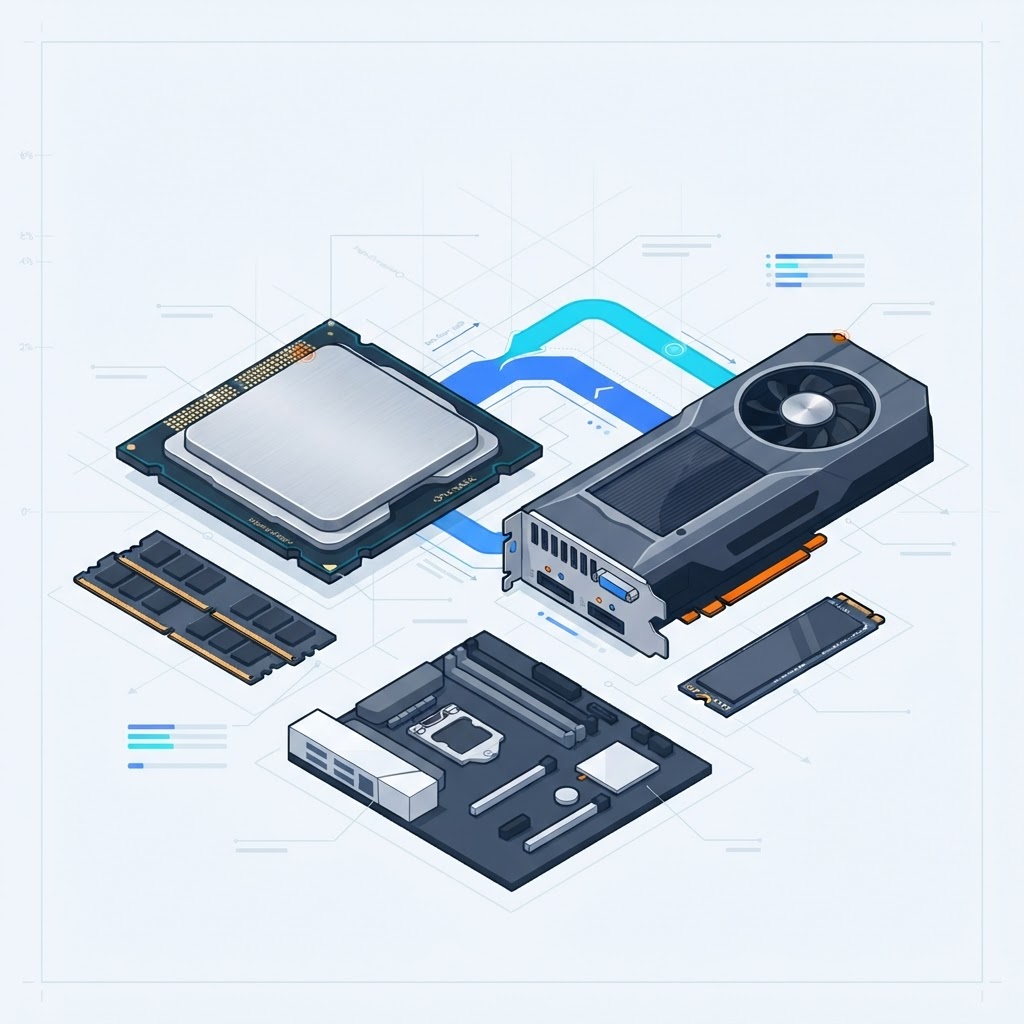
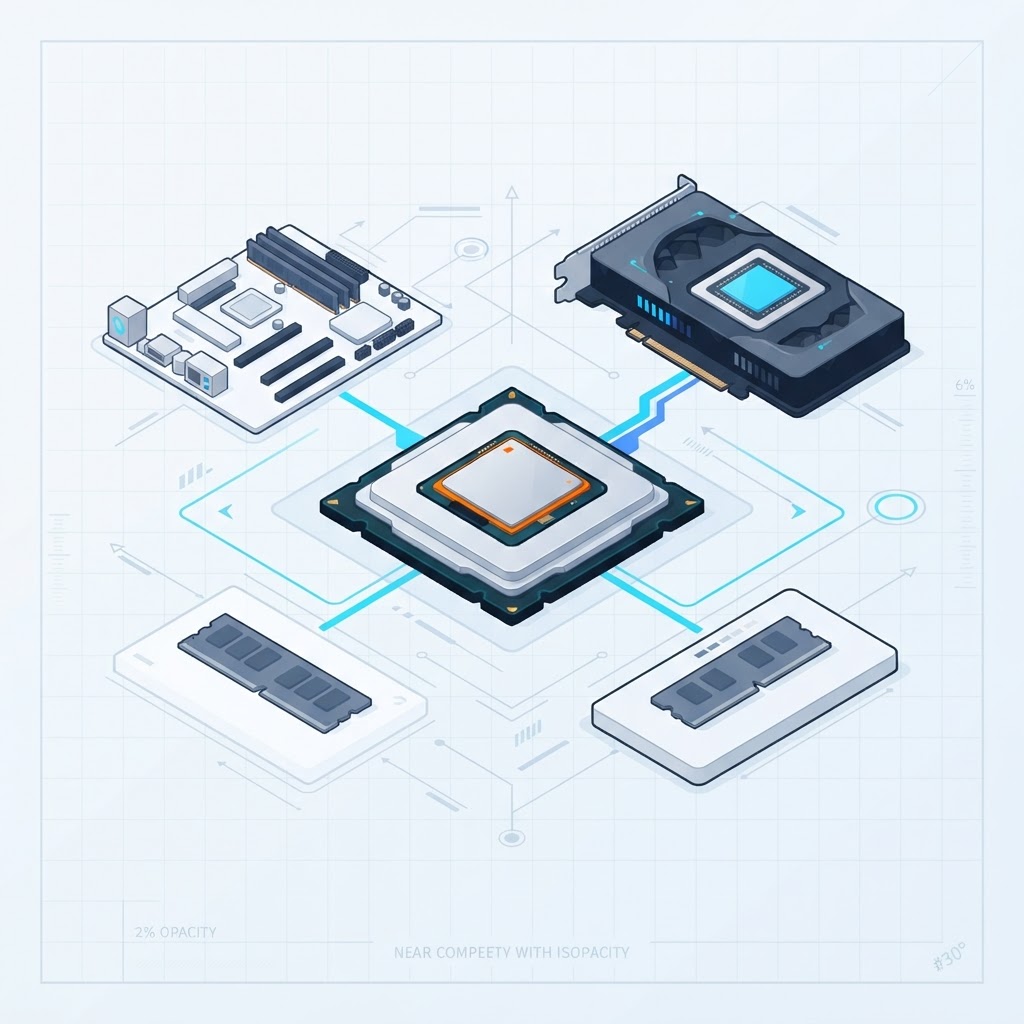
In a gaming PC, the GPU is king, it does most of the work. In an editing PC, the balance shifts. The CPU handles the heavy lifting of playback, scrubbing through the timeline, and managing complex file instructions. Modern 4K and 8K files are highly compressed, and your CPU has to unpack them in real time so you can edit without stuttering.
That means for editing you generally want:
More CPU cores (for rendering and export)
More RAM (for smooth timelines and multitasking)
Enough GPU VRAM (the hard limit on high-resolution timelines)
Fast storage (so your footage loads and caches quickly)
It also means you can often spend a little less on the pure gaming muscle of the GPU, and put that money into cores, RAM, and storage instead.
The CPU: Cores Matter Most
For editing, core count drives your render and export times, while high clock speeds keep the timeline responsive.
Swipe sideways to see the full table →
Your work
Reasonable CPU target (2026)
1080p editing, light 4K
6–8 cores (e.g. Ryzen 7 class)
Serious 4K editing
12+ cores (e.g. Ryzen 9 class)
Heavy 4K / 8K, 3D
16+ cores (top Ryzen 9 / Intel Core Ultra 9)
For most content creators, 24 cores is overkill, 8 to 12 cores is optimal for video editing, while 16 cores benefit 3D rendering and heavy multi-tasking. Don't overbuy: a mid-range CPU handles far more than beginners expect.
RAM: 32 GB Is the Real Starting Point
Gaming is happy with 16 GB. Editing is not.
16 GB: the bare minimum, fine for 1080p and light work
32 GB: the minimum recommended for 4K video editing and general content creation workloads
64 GB+: 8K editing and complex After Effects projects benefit from 64 GB of RAM
If you're editing 4K, treat 32 GB as your floor. It's one of the cheapest upgrades that makes editing feel smooth.
CoreForge newsletter
Get our weekly Quebec PC deals digest — no spam.
The GPU: VRAM Is the Hard Limit
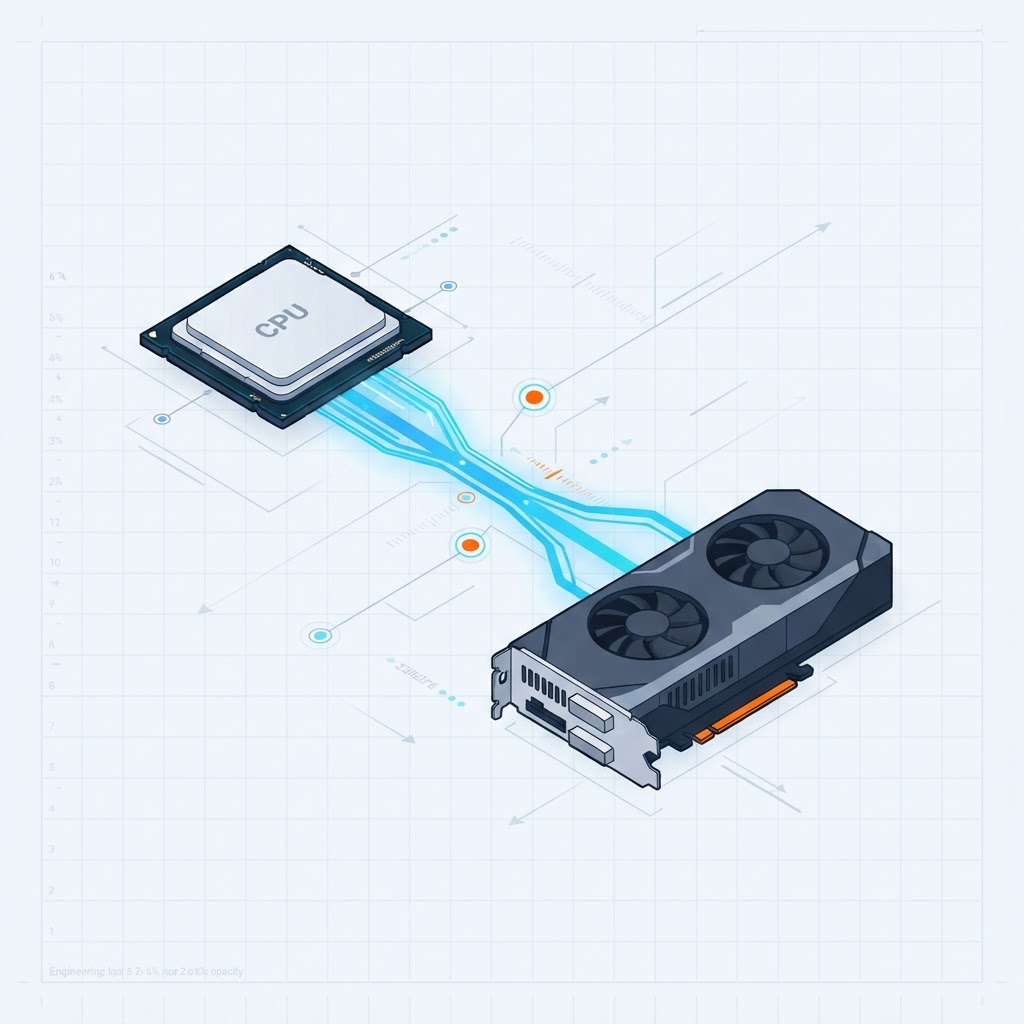
For editing, you care less about frame rates and more about VRAM (the memory on the graphics card). Run out of it on a high-resolution timeline and performance doesn't slow down gently, it stutters or crashes.
Swipe sideways to see the full table →
Resolution
VRAM to aim for
1080p
8 GB
4K
12 GB (practical floor)
6K / 8K
20 GB or more
VRAM is the hard constraint: 12 GB minimum for 4K, 20 GB or more for 6K/8K workflows to avoid timeline lag and crashes. A modern GPU's hardware encoder (NVIDIA NVENC, AMD AMF, Intel Quick Sync) also dramatically cuts export times, so it's worth having a recent card even if you're not gaming.
Video files are big, and slow storage makes everything feel sluggish. A fast NVMe SSD for your active projects means footage loads instantly and cache files keep up. A second larger drive (SSD or HDD) is great for archiving finished projects.
High-core CPUs get hot during long exports. Budget CPUs are fine with a quality tower cooler, mid-range chips benefit from a 240mm AIO, and high-end 16-core CPUs want a 280mm or 360mm AIO for sustained workloads, this prevents thermal throttling during long render sessions. Our Related Resourceair cooler vs AIO guide helps you choose.
A Note on Pricing
PC part prices change constantly, and they're different in Canada than in the US. Rather than quoting figures that go stale, we recommend checking the current price on Amazon.ca for any part before buying. The fastest way to a balanced, budget-matched editing build is to let our Related Resourcefree AI Builder put the parts together for you, it works in Canadian dollars and checks compatibility automatically.
CoreForge may earn a commission from qualifying Amazon purchases, at no extra cost to you. See our affiliate disclosure.
Your Action Plan
Identify your main software, Premiere Pro (CPU-leaning) or DaVinci Resolve (GPU-leaning).
Pick your resolution, 1080p, 4K, or higher. This sets your RAM and VRAM targets.
Choose cores to match, 8 for light work, 12+ for serious 4K.
Lock in 32 GB RAM minimum for 4K, and a GPU with 12 GB+ VRAM.
You don't need a $5,000 workstation to edit well in 2026. Match the parts to your actual work, and a sensible mid-range build will handle 4K smoothly, while leaving room to grow.
Compare parts, use the AI builder, or start from a CoreForge build.
Frequently Asked Questions
Everything you need to know about this topic before choosing your PC components.
You need enough VRAM more than raw gaming power. For 4K, aim for a GPU with at least 12 GB of VRAM. DaVinci Resolve leans on the GPU more than Premiere Pro, so if you use Resolve, prioritize it more.
Both are competitive in 2026. Intel's Quick Sync helps with Premiere Pro exports; AMD's high core counts are excellent value for multi-threaded rendering and DaVinci Resolve. Match it to your software, our [AMD vs Intel guide](/blog/amd-vs-intel-gaming-2026-beginners-guide) goes deeper.
Yes, a well-balanced gaming PC with enough RAM (32 GB) and a GPU with good VRAM edits video well. The [Ryzen 9 class](/blog/best-cpu-for-gaming-canada-2026) is a good example of a chip that games and edits. The main upgrades for editing are more RAM and fast storage.